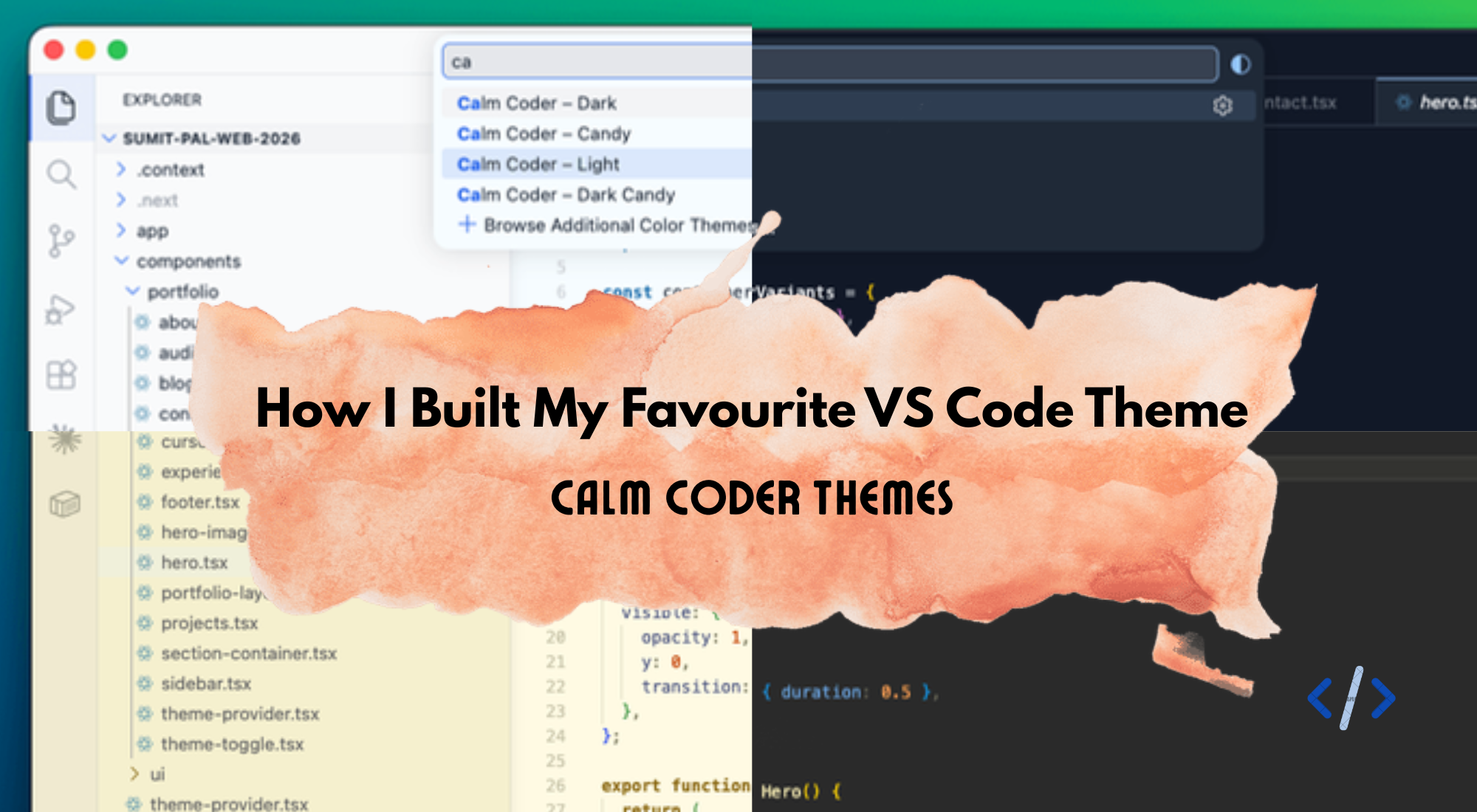
Hi, I'm Sumit — a developer who cares a little too much about how his workspace looks. When I'm not obsessing over color palettes, I build web apps and ship side projects. This one happens to be both.
I spend a lot of time in my code editor. Like, a lot. And for the longest time I kept hopping between themes — Dracula, One Dark, Catppuccin — never fully settling. They were all great, but none of them felt like mine.
So I did what any developer does when they can't find exactly what they want: I built it myself.
This is the story of how I went from a color palette idea to a published VS Code extension — Calm Coder Themes.
The Idea
It started with my portfolio website. I'd spent time picking colors that felt calm and focused — a warm graphite background, soft yellows, sage greens, muted purples. Every time I looked at it I thought: I wish my editor looked like this.
That was the brief. Take the exact palette I'd already designed for my web presence, and bring it into the place where I spend most of my day.
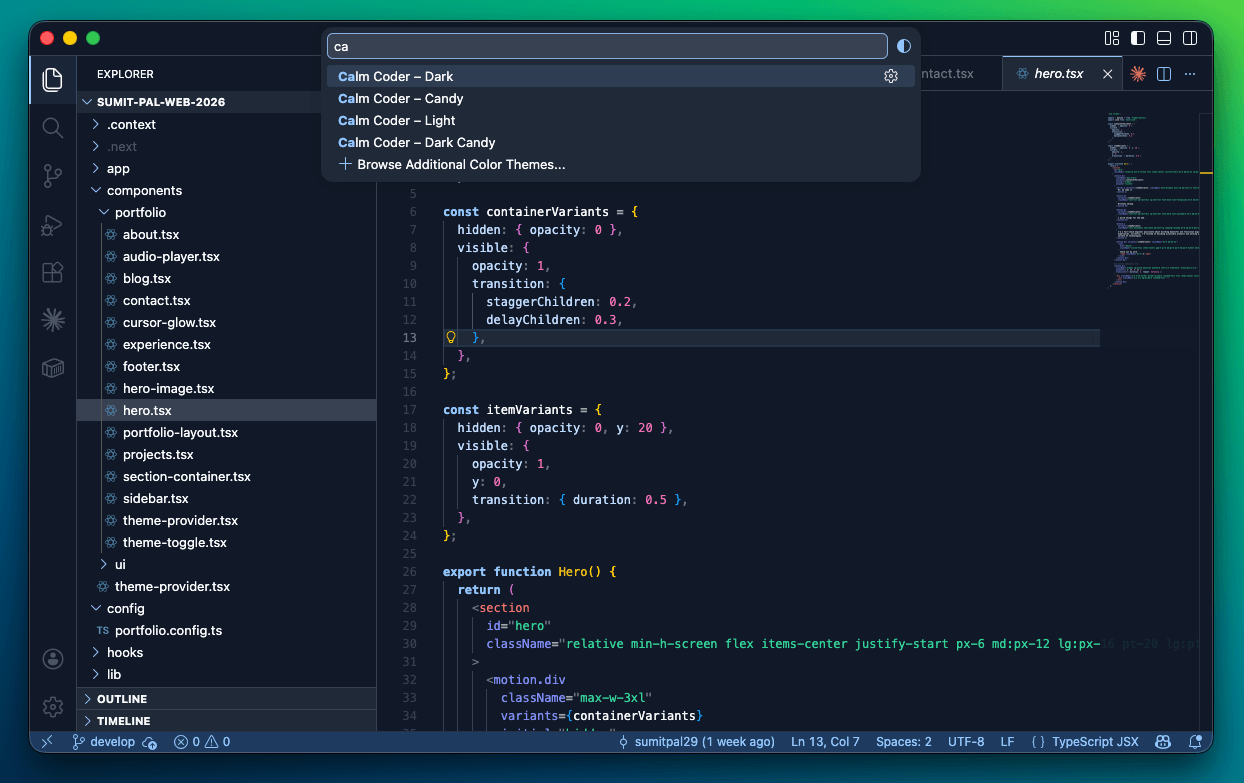
The result is four themes:
Themes
Calm Coder – Candy
A warm light theme. Cream backgrounds, sunshine yellow accents, mint green strings. Inspired by a cozy, handcrafted aesthetic.
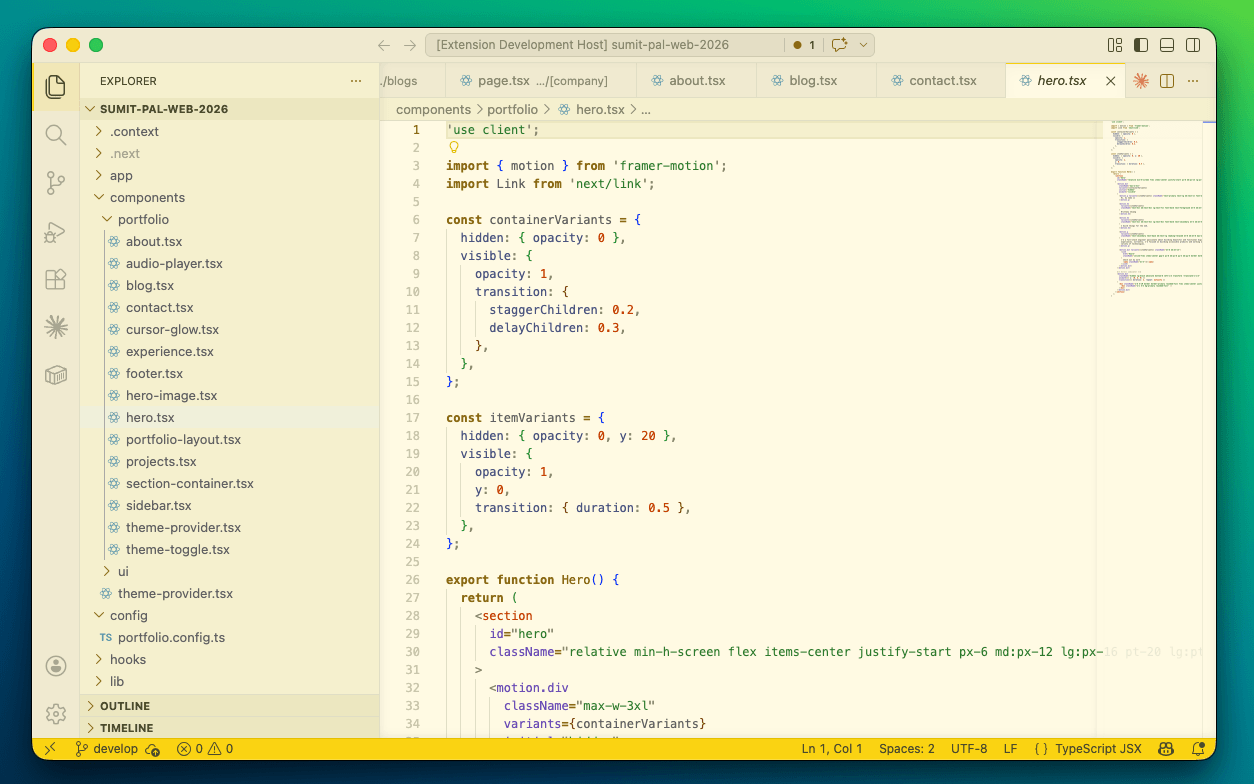
Calm Coder – Dark Candy
The dark counterpart to Candy. Graphite #2A2A2A background with the same warm yellow and sage green palette. Feels like coding by candlelight.
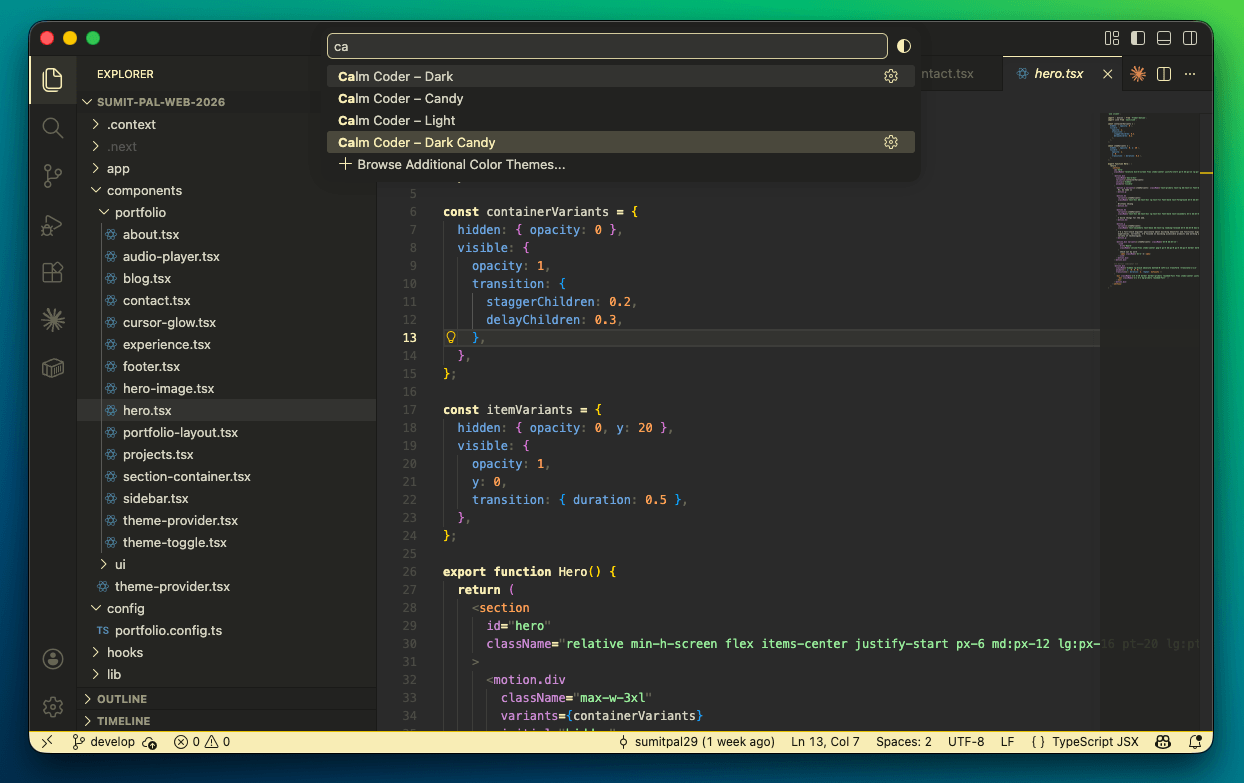
Calm Coder – Light
A clean, professional light theme. Ice-white background with cobalt and azure blue accents. Designed for bright environments.
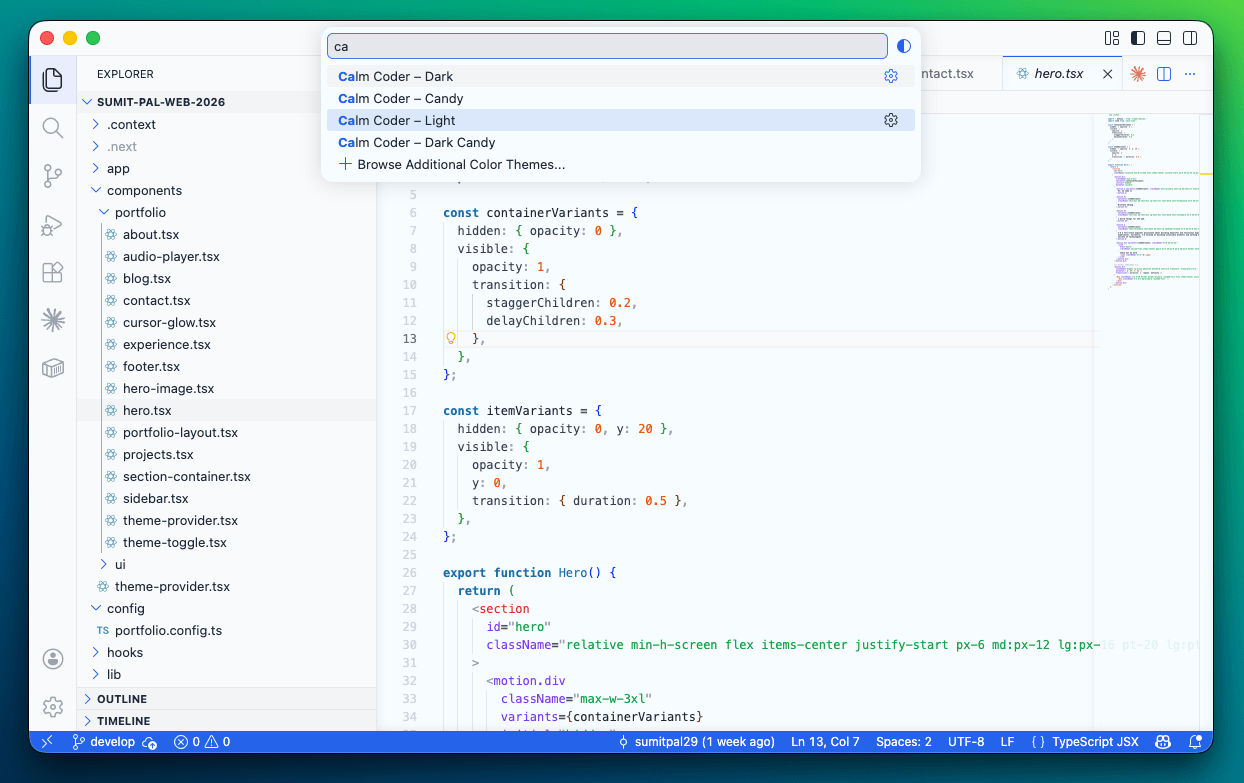
Calm Coder – Dark
A deep midnight blue dark theme. Cool slate backgrounds with sky blue highlights. Great for low-light setups.
How VS Code Themes Actually Work
Before writing a single color, I needed to understand the structure. A VS Code color theme is just a JSON file with two main sections:
colors — controls the editor UI: backgrounds, sidebars, tabs, status bar, input fields, everything outside your code.
tokenColors — controls syntax highlighting: how keywords, strings, functions, types, and comments are colored inside your files.
There's also a third, newer section — semanticTokenColors — which gives language servers (like TypeScript's) a chance to apply more precise colors based on actual type information, not just regex patterns.
{
  "name": "Calm Coder – Dark Candy",
  "type": "dark",
  "colors": {
    "editor.background": "#2A2A2A",
    "editor.foreground": "#D4D2C0"
  },
  "tokenColors": [
    {
      "name": "Keyword",
      "scope": ["keyword", "storage.type"],
      "settings": {
        "foreground": "#F8EDB5",
        "fontStyle": "bold"
      }
    }
  ],
  "semanticHighlighting": true,
  "semanticTokenColors": {
    "function": "#F8EDB5",
    "type": "#C98AD3"
  }
}
That's it. No JavaScript, no build step — just a JSON file describing colors.
Designing the Palette
I started with the Dark Candy theme since it was the most personal — it directly mirrors my webapp's design language.
The palette I landed on:
| Role | Color | Hex |
|---|---|---|
| Background | Graphite | #2A2A2A |
| Primary accent / keywords | Vanilla Custard | #F8EDB5 |
| Strings | Light Green | #96EB99 |
| Types / classes | Amethyst Smoke | #C98AD3 |
| Numbers | Sandy Brown | #FFA053 |
| Foreground text | Warm Off-White | #D4D2C0 |
A few principles I kept coming back to:
Warmth over brightness. Pure #ffffff white and #ffff00 yellow are jarring on dark backgrounds. I shifted everything slightly warm — #F8EDB5 instead of a harsh gold, #D4D2C0 instead of white. This removes the eye strain of high contrast without losing readability.
Consistent accent logic. Keywords get the yellow (the "important" color). Strings get green (data, content). Types get purple (structure). Numbers get orange (values). This isn't arbitrary — it maps to how you read code. Your eye learns to find what it's looking for.
Muted is not dull. Saturated neons are tiring over long sessions. All my greens, purples, and yellows are deliberately pulled back. They still pop against the dark background, but they don't shout.
I stored each palette as a separate config file — configs/dark-candy.json, configs/candy.json, etc. — with full color metadata (RGB, CMYK, HSB, LAB values). This made it easy to stay consistent and reference exact values while building.
Setting Up the Extension
A VS Code theme is distributed as an extension. The scaffolding is minimal — you just need a package.json that declares your themes:
{
  "name": "calm-coder-themes",
  "displayName": "Calm Coder Themes",
  "publisher": "sumitpal29",
  "version": "0.1.0",
  "engines": { "vscode": "^1.75.0" },
  "categories": ["Themes"],
  "contributes": {
    "themes": [
      {
        "label": "Calm Coder – Dark Candy",
        "uiTheme": "vs-dark",
        "path": "./themes/dark-candy-color-theme.json"
      }
    ]
  }
}
The uiTheme field is either "vs" for light themes or "vs-dark" for dark themes. This tells VS Code which base scrollbar, icon, and widget styles to use underneath your colors.
Testing Locally
Here's the part that surprised me with how easy it was.
I created a .vscode/launch.json in the project:
{
  "version": "0.2.0",
  "configurations": [
    {
      "name": "Launch Extension",
      "type": "extensionHost",
      "request": "launch",
      "args": ["--extensionDevelopmentPath=${workspaceFolder}"]
    }
  ]
}
Press F5. VS Code opens a second window — the "Extension Development Host" — with your theme loaded live. Open the theme picker with Cmd+K Cmd+T, select your theme, and you're looking at it in real code immediately.
Any time I tweaked a color in the JSON, I just reloaded the dev host window (Cmd+R) and saw the change instantly. No build step, no restarts, no waiting.
Iterating on Colors
This is where I spent most of my time. Getting the UI colors right is harder than syntax highlighting, because there are so many surfaces — tabs, breadcrumbs, sidebar sections, scrollbars, input fields, hover states, focus rings, diff highlights, git decorations...
A few things I learned the hard way:
Alpha values are your friend. Rather than computing a hover color manually, use the base accent with a low alpha: #F8EDB550 for a subtle selection highlight, #F8EDB515 for an active background. It keeps everything visually cohesive without having to pick dozens of individual colors.
Test with real code. I opened TypeScript, Python, JSX, JSON, and Markdown files while iterating. Each language surfaces different token scopes. What looks great on a .ts file might look wrong in a .py file if you haven't covered the right scopes.
The status bar is a signature. I kept the status bar as the main accent color — bright yellow for Dark Candy, cobalt blue for Light. It's a small touch but it makes the theme feel intentional every time you glance down.
Publishing to the Marketplace
Once the themes felt solid, publishing was straightforward.
Step 1 — Install vsce:
npm install -g @vscode/vsce
Step 2 — Create a publisher account at marketplace.visualstudio.com/manage.
Step 3 — Get a Personal Access Token from Azure DevOps:
- User Settings → Personal Access Tokens
- Organization: All accessible organizations
- Scope: Marketplace → Manage
Step 4 — Package and verify:
vsce package
This generates a .vsix file. I installed it locally first with code --install-extension calm-coder-themes-0.1.0.vsix to do a final check in a real (non-dev) VS Code window.
Step 5 — Publish:
vsce publish -p <YOUR_PAT>
A few minutes later, the extension was live on the marketplace.
What Made It to the Final Package
A clean .vscodeignore matters. By default, vsce packages everything — including my .claude/ settings, config files, and dev tooling. I explicitly ignored anything users don't need:
.git/**
.vscode/**
.claude/**
configs/**
CHANGELOG.md
The final .vsix is just 20KB — four theme JSON files, the README, an icon, and a license. Lean and clean.
What I Learned
Building a theme taught me to look at my editor differently. I started noticing things I'd never paid attention to — the color of inactive tab text, the subtle background shift on a hovered list item, the way bracket match highlights interact with selected text.
More than anything, it made my daily environment feel intentional. I picked every color. I know why it's there. And that makes it easier to sit down and do the work.
If you've ever thought about building your own theme, the barrier is genuinely low. All you need is a JSON file and an afternoon.
Try Calm Coder Themes
If any of the four themes sound like your vibe — give it a go.
Install from VS Code:
ext install sumitpal29.calm-coder-themes
Or search "Calm Coder Themes" in the Extensions panel (Cmd+Shift+X).
Themes included:
- 🍬 Calm Coder – Candy — warm cream and yellow, perfect for daytime
- 🌙 Calm Coder – Dark Candy — graphite dark with the same soft palette
- ☀️ Calm Coder – Light — clean ice-white with azure blue
- 🌑 Calm Coder – Dark — deep midnight blue for late-night sessions
Show Some Love ⭐
The source code is on GitHub — if you find the themes useful, a star goes a long way and keeps me motivated to keep building.
👉 github.com/sumitpal29/calm-coder-themes
And if you try the extension, please leave a rating on the marketplace — it genuinely helps other developers discover it.
Let's Talk
If you install it and have thoughts — good, bad, or "please change this one color", I'd genuinely love to hear from you. Reach out and say hi, I read every message.
Happy coding!